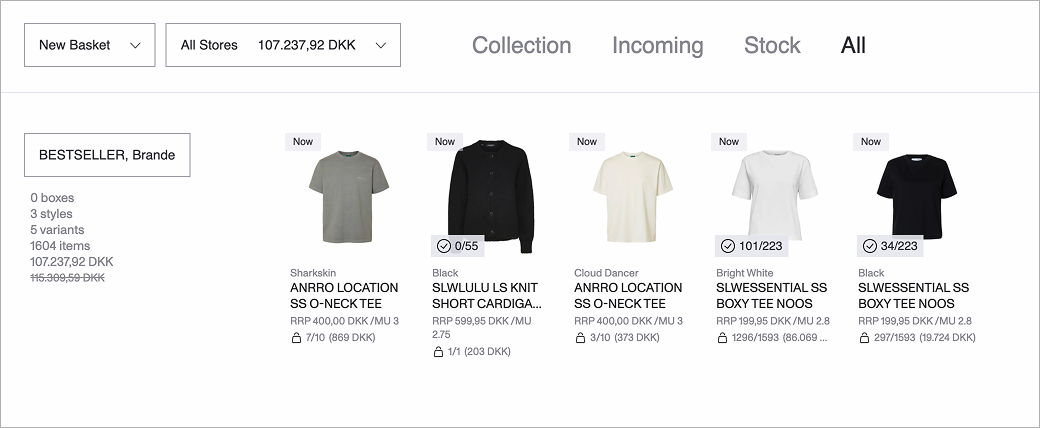
Presentations: Basket Inspect — Order History & Compare Past Orders Side by Side, Variant Count in Groupings
1779808247317
Here are the latest updates to the DSR app.
HIGHLIGHT OF THE RELEASE
Order History — Compare Past Orders Side by Side in Basket Inspect
Sales reps can now view a buyer's order history alongside the active basket — without leaving the presentation. A new Split View mode in Basket Inspect opens a second panel showing the buyer's previously placed orders, so your team can reference past purchases, spot gaps, and add items directly to the new basket while staying in the same view.
Enabling Split View
Toggle Split View on using the new icon in the Basket Inspect toolbar. The page divides into two panels:
Left panel — the active basket (existing Basket Inspect view)
Right panel — the Order History view
Each panel has its own toolbar. Filters, grouping, and sorting applied on one side do not affect the other.
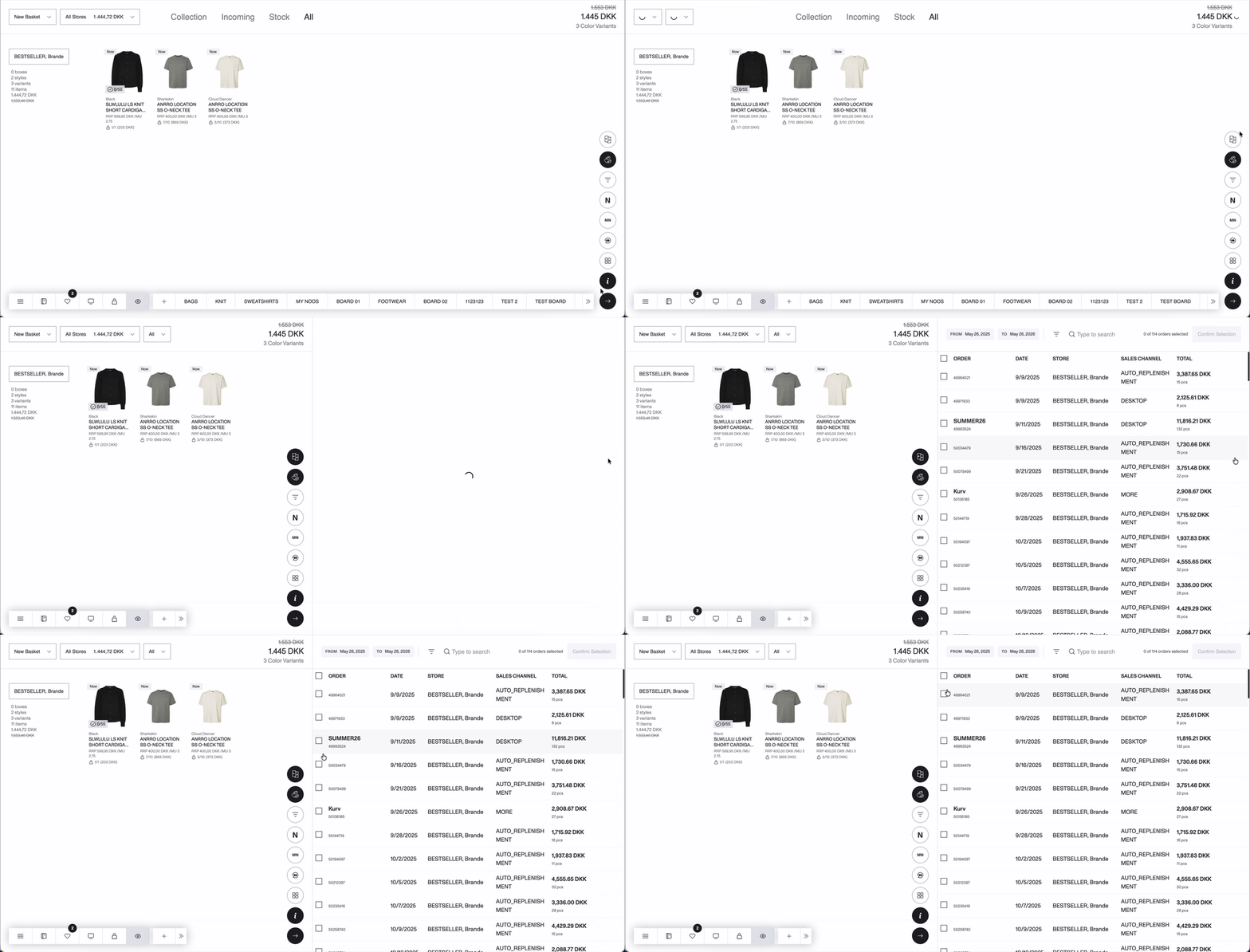
Selecting orders
When Split View is first activated, the Order History panel opens an order picker. It shows all orders from the past year by default, scoped to the stores in your presentation. The date range can be extended to go further back. From the picker, you can:
Search orders by name
Sort by Order, Date Placed, Store, Sales Channel, or Total (price and units)
Filter by status, delivery period, category, gender, etc.
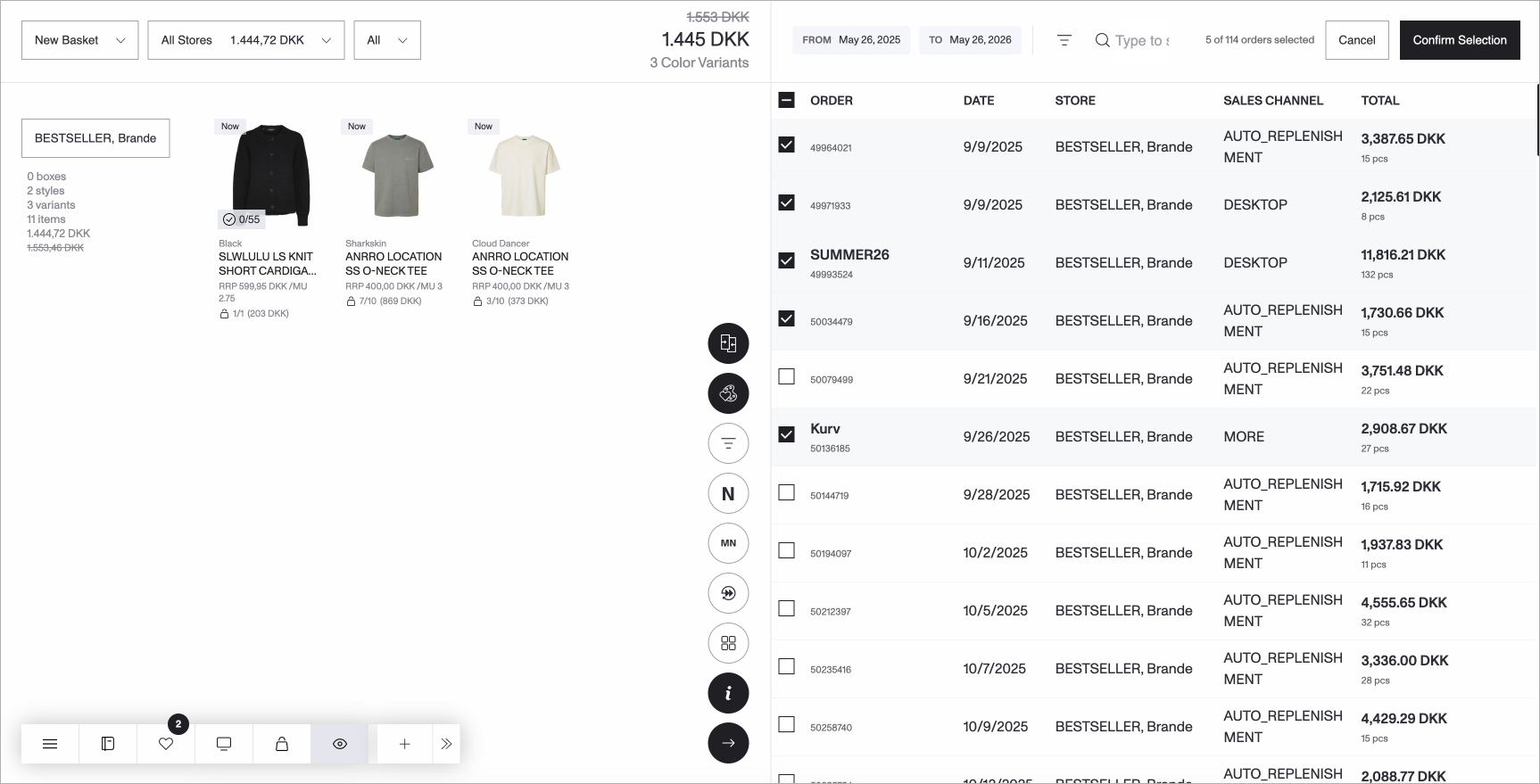
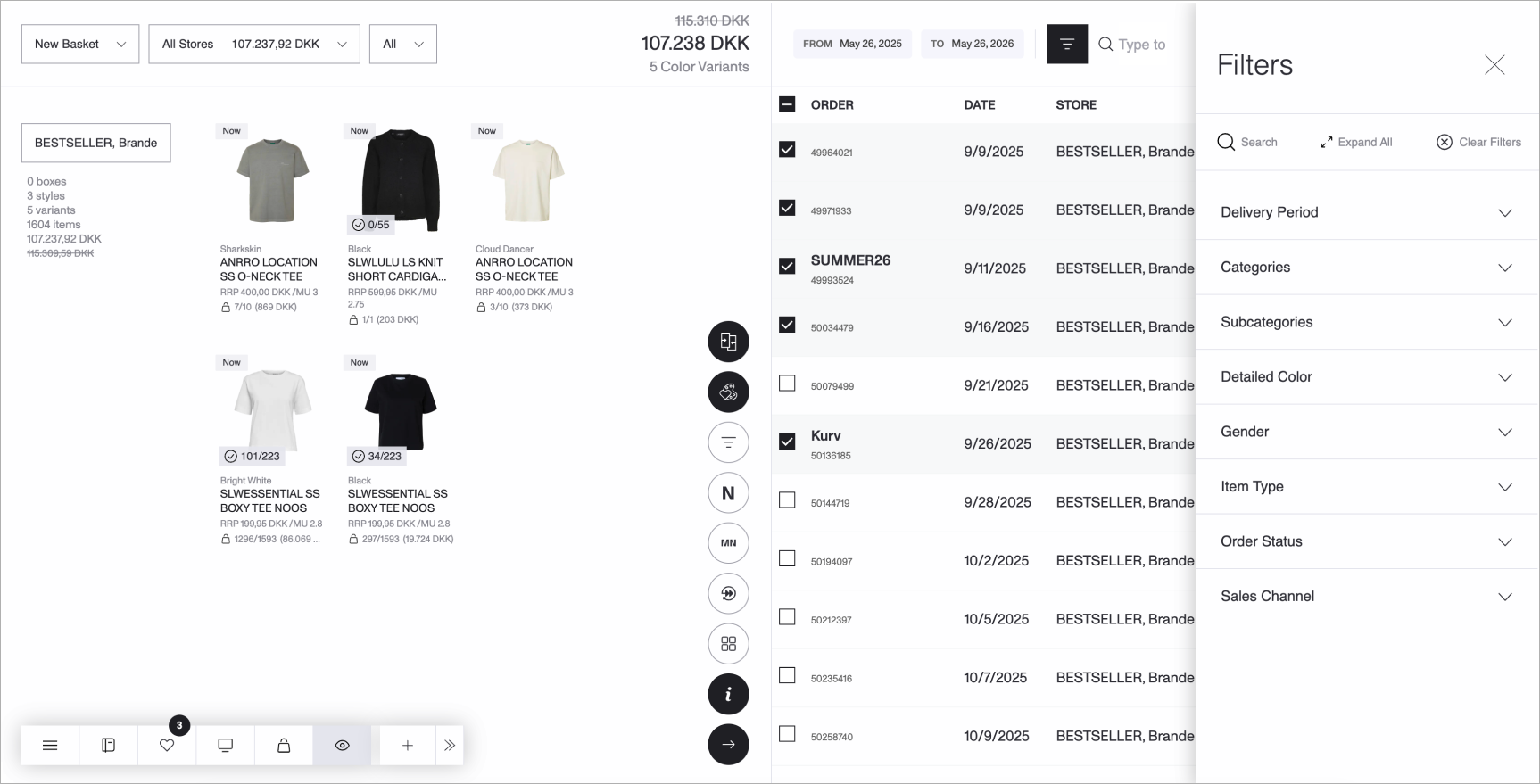
A counter in the header shows how many orders are selected out of the total. Once you're ready, press Confirm Selection to open the listing view.
Browsing and acting on Order History
The listing view shows all products from your selected orders. Use the All Orders and All Stores dropdowns to narrow the view to a specific order or store. The same toolbar controls available in Basket Inspect — Color, Filter, Grouping, and Info — are available here too, operating independently on the Order History side.
From the listing view, you can open a product detail page for any active style and through its assortment view, add it directly to the basket on the left.
To change your order selection, use the Reset button to reopen the picker pre-filled with your previous choices.
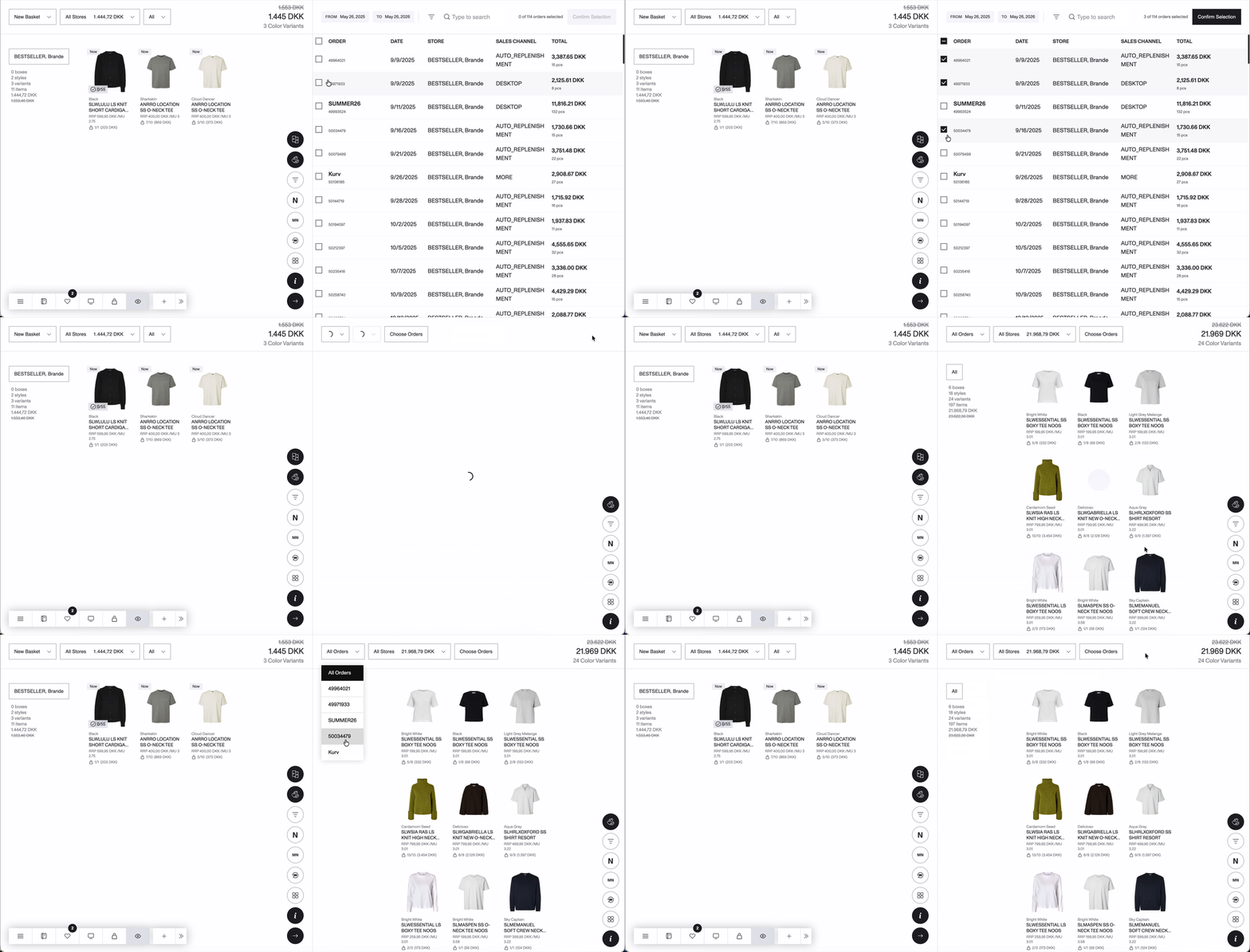
Selection is remembered per presentation
Once you confirm an order selection, the chosen orders and date range are saved to that presentation. The selection persists through page refreshes and closing and reopening the presentation, the same orders load automatically the next time you enable Split View. You can update the selection at any time.
Note: if a presentation is copied, the copy starts with the default state. Order selection is not inherited and will need to be set up separately.
Multi-store presentations
For presentations with multiple stores, the order picker loads orders from all stores together. Orders can then be filtered by store in the listing view using the All Stores dropdown.
Why it matters
With Order History in Split View, your sales team can:
Spot gaps between last season's order and the basket being built
Reference the past order details while building the new basket
Add items from past orders directly to the new basket, without switching windows or leaving the presentation
IMPROVEMENTS
Basket Inspect: Variant Count Added to Group Summary
When styles are grouped in Basket Inspect, the group header now includes the total variant count alongside the existing summary — boxes, styles, items, and price. The breakdown is visible at a glance without expanding the group.